 As per my previous blog post Microsoft has release MS14-025 that blocks the ability to configure passwords using Group Policy Preferences. However as part of the guidance they have also published a PowerShell script that allows you to set a random password to the user local admin account. This blog post show you how you can use this script (bad word, I know) to manage the passwords of local accounts on the computers in your organisation. TIP: Before starting remember that it is entirely practical to have an SOE with no local admin accounts enabled at all. If this ever gets you into tight water and you need to logon to the computer you can still follow my other blog post to logon to the computer (see How to enable a disabled Local Administrator account offline in Windows 7 (even when using BitLocker) But, if you are using local admin accounts on your workstations then the following will give you an alternative to using the now disabled password feature in Group Policy Preferences. The PowerShell script that Microsoft provides generates a unique random password for each compute so it's also a mitigation step against a Pass-the-Hash attacks. This is a nice side affect of setting a unique password as you cannot use the hash of one local admin account to access another computer. Simply put, this PowerShell script contacts each computer over the network from a pre-defined list and then set the local account password to a random value. Note: Because the computer's need to be turned on for it to reset the passwords so you may have to perform this process on a regular basis to ensure that you cover all computers. Next, it then saves this password to a file that can/should be encrypted with a "master password" of your choosing. This is of course necessary to give added protection against anyone that "might" grab a copy of the password file as it means they would also have to know the encryption password to decrypt the password value. Saving the password in a text file might not sound all that secure however it is a lot more secure than using Group Policy Preferences. Recap: Group Policy Preferences saves the "cPassword" value in Active Directory System Volume in files that are readable by all users and with the same 32bit encryption password. Warning: While this script is from Microsoft it clearly states that in no way shape or form is it actually support so the following is to be used at your own risk. (See MS14-025 for further disclaimers).
Pre-Requisites
As I said before this PowerShell script actually makes a connection to each computer you first need to enable WinRM on all the computers that you are changing the password on. To do this take a look at my previous post How to enable WinRM via Group Policy and ensure that it is applied to your computers.
Running the Password Change Script
Go to MS14-025 and take a copy the script the entire change password script into a text file on the computer you are going to be running the process from. Next you need to open a PowerShell Windows running as Administrator permission and then paste the contents of the script into the Windows. You will then need to press "Enter" twice to ensure that the entire script has run. (see below) 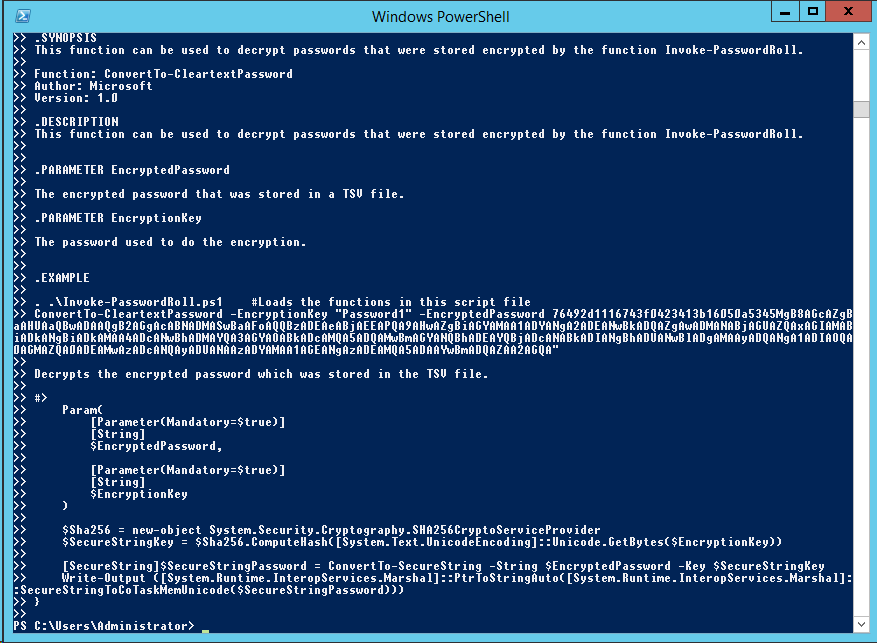 You have now created the require functions in that current PowerShell window to perform the password change process. You will need to do this each time you open a new PowerShell Window as the command are not persistent. This might be a little convoluted but doing it this way also removes the need to enable unrestricted or bypass of script signature checking. The next step is to generate an up to date list of computer names in a text file for the script to process though with the password change. Below is my extremely complicated example file:
 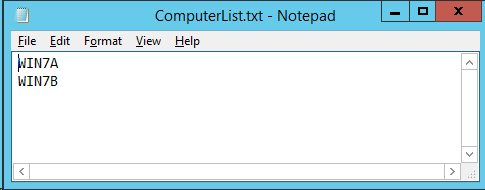 Once you have you file created you now need to run the Invoke-PasswordRoll that will go though and set the password on each computer name in the list:
Invoke-PasswordRoll -ComputerName (Get-Content ComputerList.txt) -LocalAccounts Administrator -EncryptionKey "P@ssw0rd1" -PasswordLength 22 -TsvFileName "LocalAdminPasswords.tsv"
Of course you should use your own unique Encryption Key to encrypt the password value. Tip: Don't forget the password!!!!! 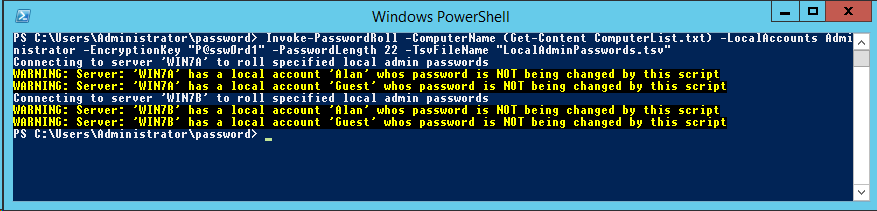 As you can see the script will also warn you when there is other local accounts on the computer that is not affected by this script. The script will append to the "LocalAdminPasswords.tsv" file is as follow, this means that the last password value on the list for that computer name is the valid encrypted password.
 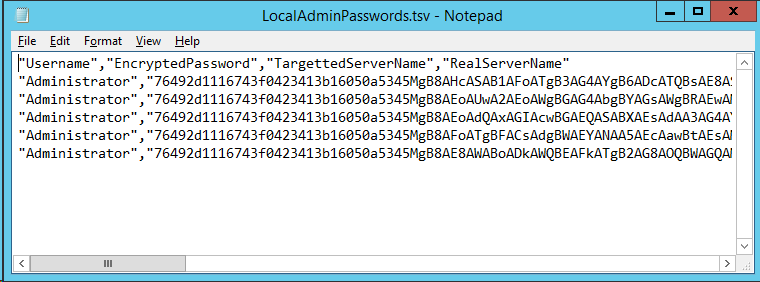 Now when you want to retrieve the password for that account you need to copy the corresponding "EncryptePassword" value and then run it through the "ConvertTo-CleartextPassword" command. Tip: Be sure that the encryption key matched the value you used in the "Invoke-PasswordRoll" command above.
ConvertTo-ClearTextPassword -encryptionkey "P@ssw0rd1" -EncryptedPassword (WAY TO LONG TO PUT HERE)
As highlighted below is the unique 22 character random password for the local admin account on the corresponding computer that you can now use to logon to the computer. 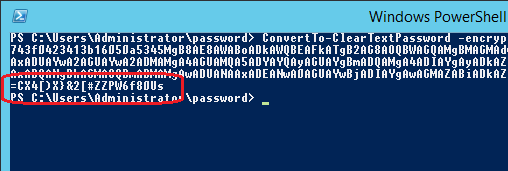 Now that you have an alternative to the passwords in Group Policy Preferences be sure that the file is save in secure location and that you also periodically run the script. While this is no where near as easy as using Group Policy Preferences this is definitely are far more secure way to mange the local admin passwords on your computers. But as I mentioned above, if you can, its far better to disable all the local admin accounts entirely on your computers as this will be more secure and easier to manage.