
 In my recent blog post about Internet Explorer 11 I explain how you can enable Enterprise Mode via Group Policy. The option "Let users turn on and use Enterprise Mode from the Tools menu" as the name suggest allows users to enable the option form the Tools menu in Internet Explorer.
 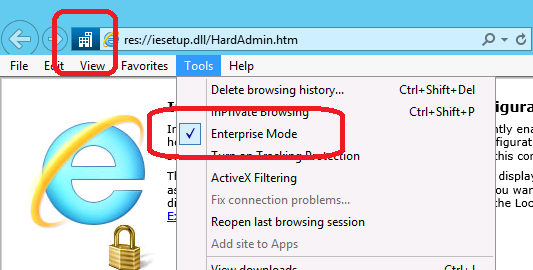 But as the description of this also mentions:
Optionally, this policy also lets you specify where to get reports about the websites for which users turn on Enterprise Mode using the Tools menu.
This is like Crowd Sourcing the list of internal web sites you have that need to be configured in IE Enterprise Mode for them to work. You can then use this information and build your own IE Enterprise Mode site list using the Enterprise Mode Site List Manager tool and deploy your own Enterprise Mode XML list so that the other users do not need to explicitly need to do something to make their browsers work. To setup this option on the client just following the TechNet article Turn on local control and logging for Enterprise Mode (see example below). Note: In the example below have used a custom HTTP port 81. I recommend you do this for your logging web server. 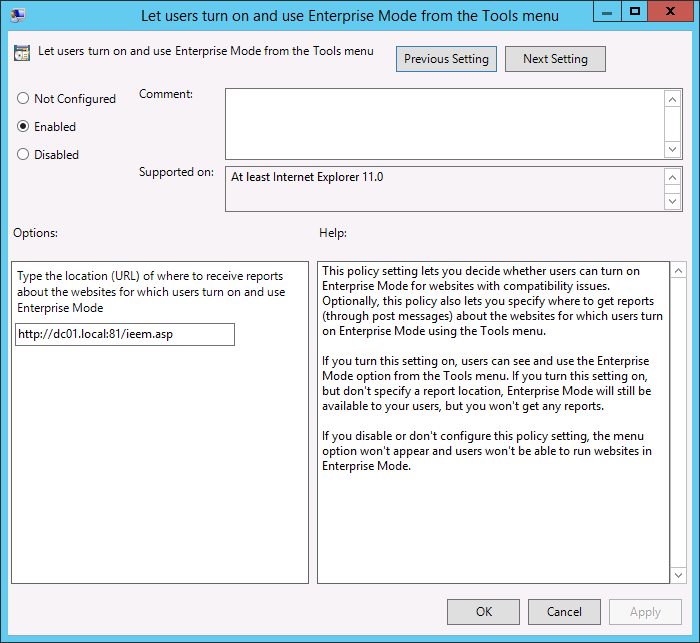 But it the TechNet article says:
To turn on logging, you must include a valid URL that points to a server that can be listened to for updates in your registry key
This unfortunately does not explain how to setup an end point server to listed for these incoming POST messages that are sent whenever a user toggles the Enterprise Mode button in the Menu. Being curious I then cracked open Fiddler to see what exactly the payload was that was being submitted as a POST form. As you can see it submits two parameters in the form of a POST form submission. As a side note I also noticed that the User-Agent string is different in the browser as it switches between modes. 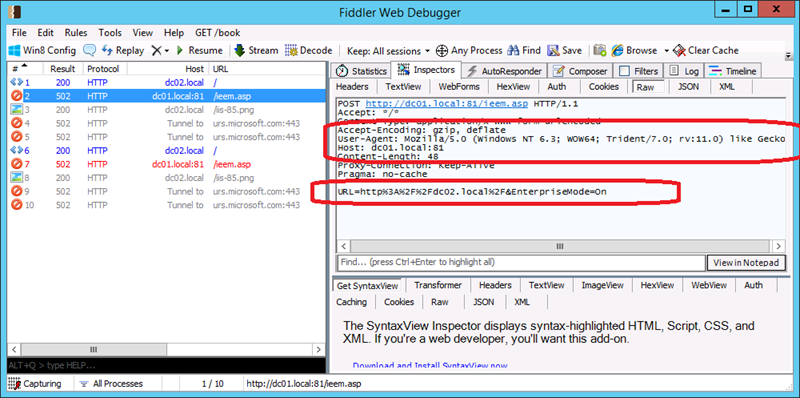
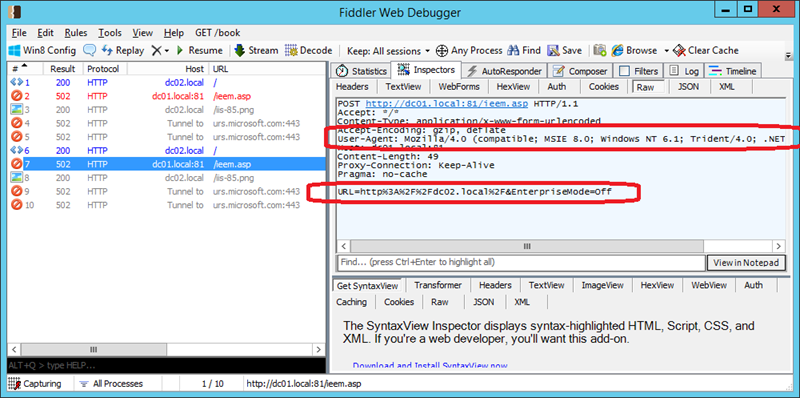 But as you can see by the error messages on the right I did not have a server setup to accept these incoming POST messages. Therefore I next installed IIS the DC01 server with ASP component so that I could setup an ASP form to accept this incoming information.
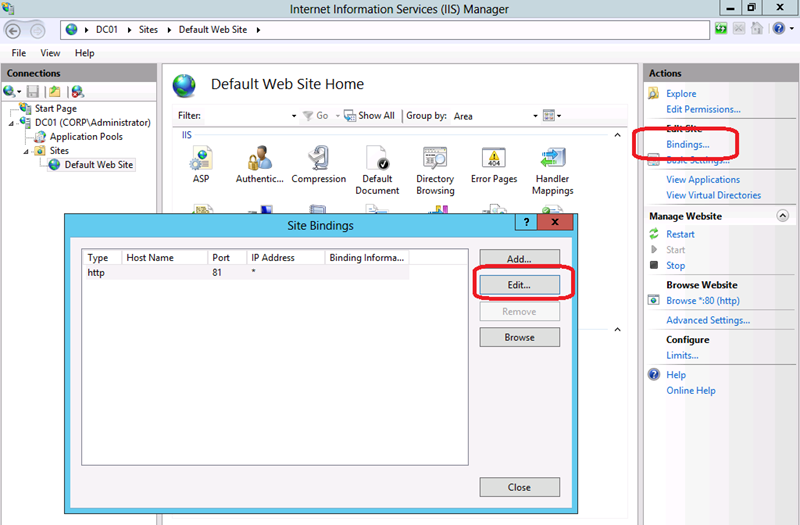
 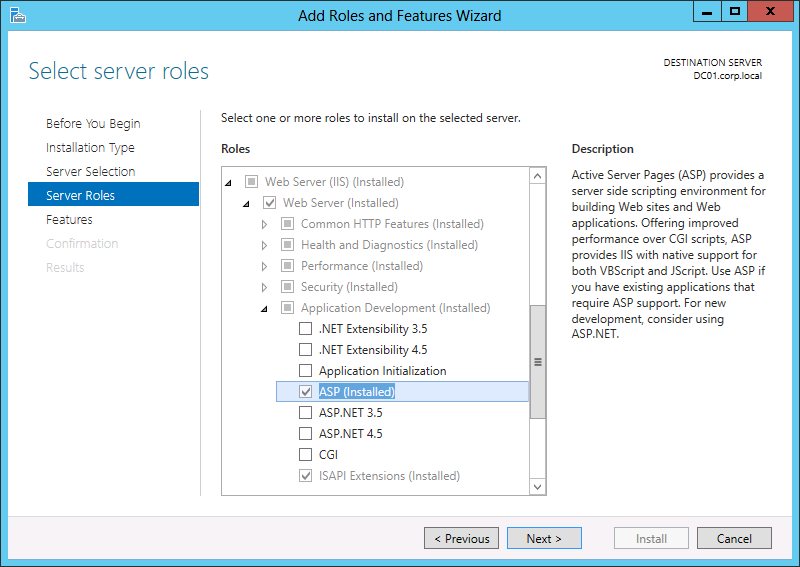 I then edited the binding of the web site to port 81 to match the custom port I configured in the Group Policy setting. The reason I created a custom port is so that I could have a dedicated site that was only for this incoming information. This is important as I am logging the information to the web sites log file and any other traffic would make it much harder to find the incoming Enterprise Mode Logging information.
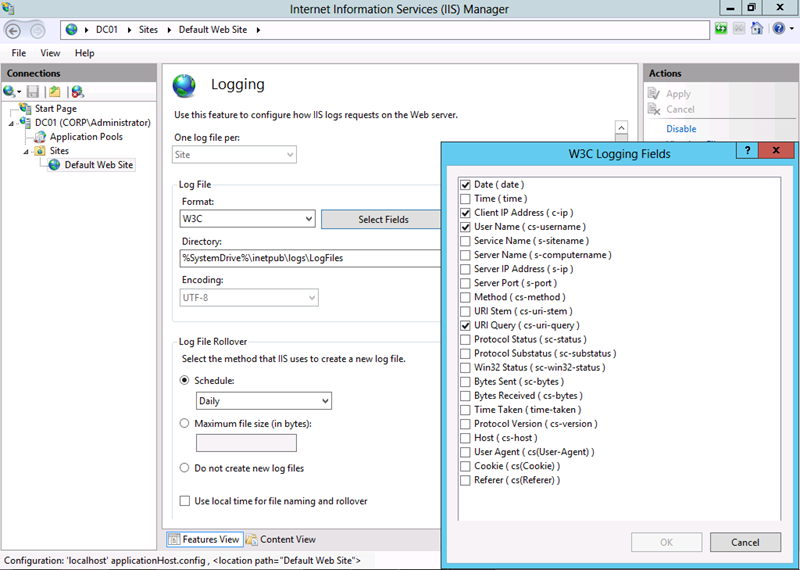
  I then modified the logging of the web site to only include Date,Client IP,User Name and URI Query. I did this to keep the log file as simple as possible. If you really wanted to you could just select the URI Query option. But I found the date, client IP useful for discovering who was having issues.
  I then placed the ASP file called "ieem.asp" (see code below) which in the root of the web server. The name of this file again has to match the name you specified in the Group Policy above.
<% @ LANGUAGE=javascript %>

<%

Response.AppendToLog(" ;" + Request.Form("URL") + " ;" + Request.Form("EnterpriseMode"));

%>
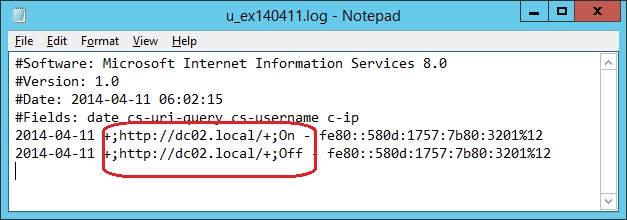
The ASP information above simple logs the POST fields to the IIS log file that you can then simply extract the date you need (example highlighted below)..
IIS Log File Output
 Internet Explorer 11 Enterprise mode is now rolling out automatically as part of Windows 8.1 Update and the recent Windows 7 internet Explorer 11 security update KB2929437. This means that this functionality is probably already starting to deploy in your organisation if you are using IE11 so why not start taking advantage of your users to Crowed Source what internal web sites have compatibility issues. Credit: Thanks to Adam Kim and Chris Jackson from Microsoft for the ASP code and point me on the right direction to get this working.