 Windows 8 is coming REALLY SOON and of course one of the big new things to computer with that is the new Metro Packaged Apps that run in the start screen. However these apps are very different and do not install like traditional apps to a path or have a true "executable" file to launch the program. Of course enterprises need a way to control these packaged apps and therefore Microsoft has added a new feature Packaged Apps option to the AppLocker feature.
 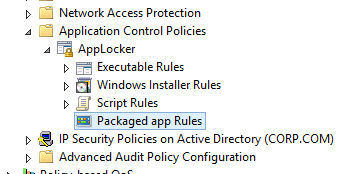 An administrator can use this feature to only allow certain apps to download from the Windows App Store and/or use it to control what inbuilt Packaged Apps are allowed to run. What I expect to see in most organisation is that the default Metro... err... Packaged Apps are manually removed from the base WIM Image before and then have these then re-enforced by AppLocker to ensure that they are not re-installed from the store.
Configuring Packaged App AppLocker Rules
Warning: Whenever you try any thing in AppLocker the golden rule is to test everything first separate from production as there are many gotcha's when doing this... In this first example we are going to explicitly "Blacklist" the weather application. Step 1. As with Executable rules with AppLocker in Windows 7 the best thing to do first is to create the "Default Rules" so that you don't kill all access to your Packaged Apps. 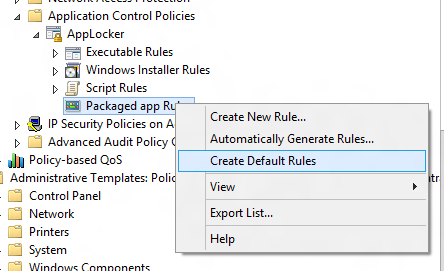 This will create one rule that allows all packaged apps to run for all users.
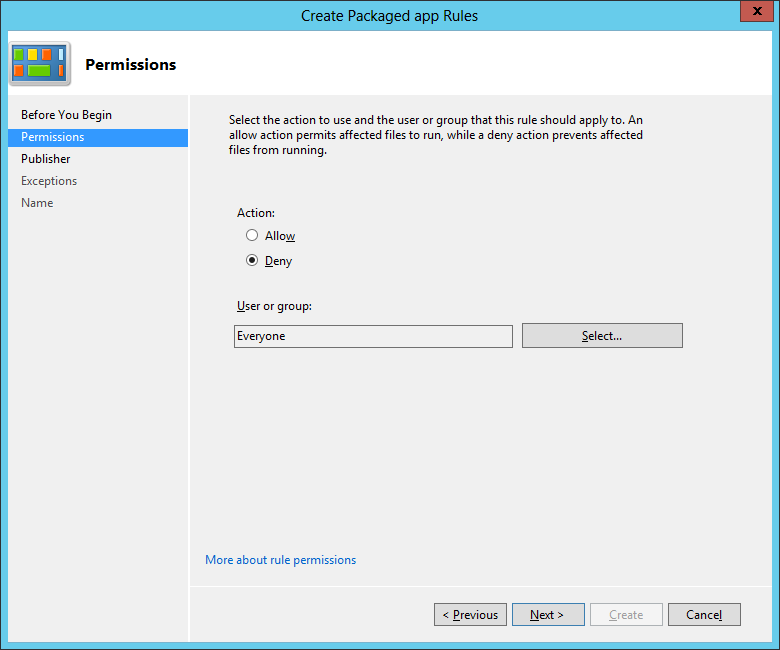
 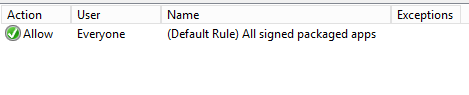 Note: Even though this rules says everyone can run all apps this does not override the restriction for the Built-In\Administrator to run Packaged Apps. Now that we have essentially whitelisted all apps we are now going to go back and explicitly deny a particular application. Step 2. Before we black list an application we either need to either have access to a signed .APPX packaged app file or have the program installed on the computer we are making the group policy change. Now we simply right click on the "Packaged app Rule" and then select the "Create New Rule..." option. We now select the "Deny" option because we of course want to block the application from running.
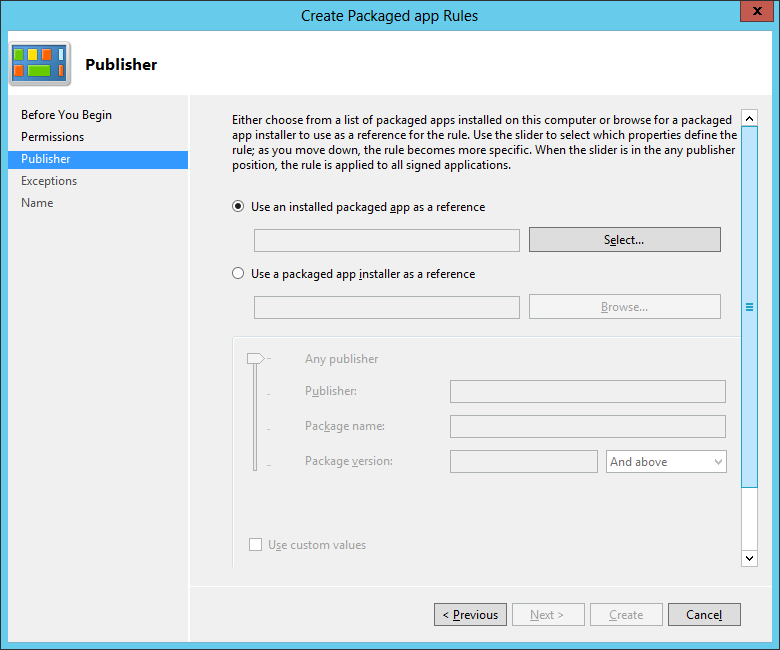
  We then have to option to select a pre-install app or a packaged app (.appx) file to use as reference for the rule.
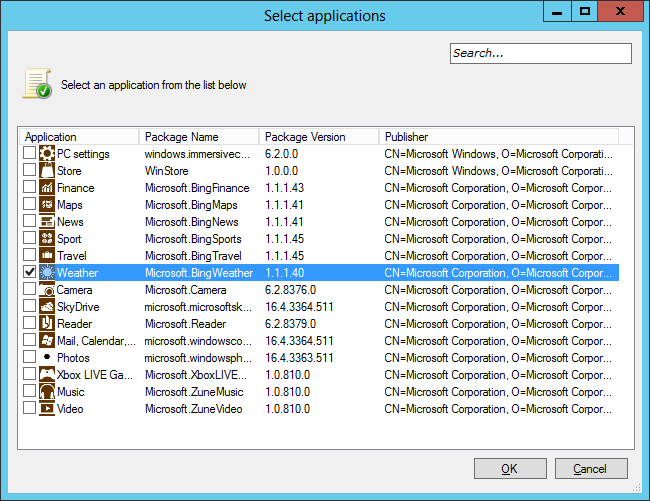
  I have now clicked on the "Select" button and am show a list of install Packaged Apps. Here I have chosen the "Weather" app as our example.
  Here we can see the signed information about the Weather App we just selected. Note: This is very similar to the Executable Rule with the absence of the File name option.
 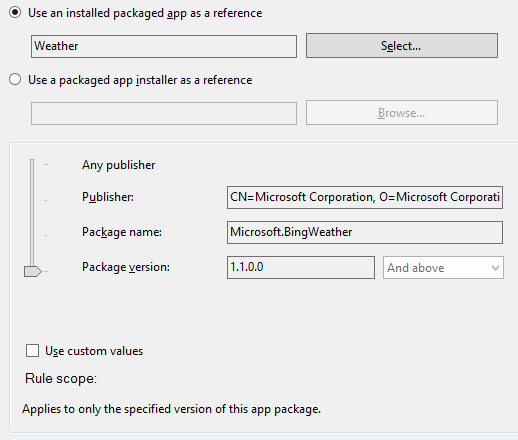 I am now going to move the slider up one level so that this setting will apply to all versions of the "Weather" app in case it gets an update in the future.
 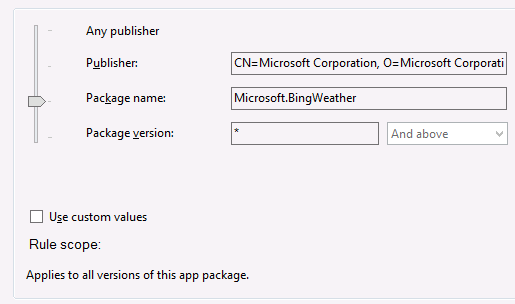 Then I click on the "Create" button and we now have a rule in place that will prevent the running of the "Weather" app.
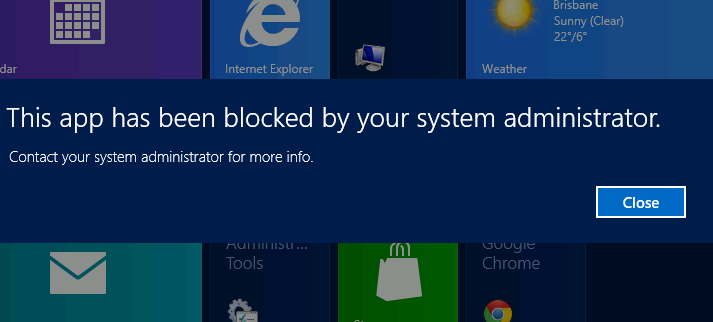
  TADA... Now if the program is already installed the app is blocker from running...
 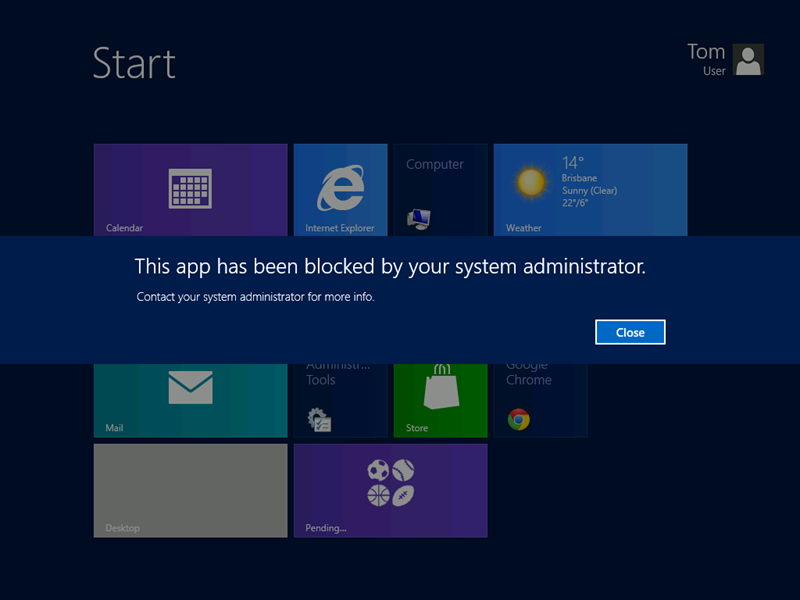 and... if the app has not yet been install it will be prohibited from installing...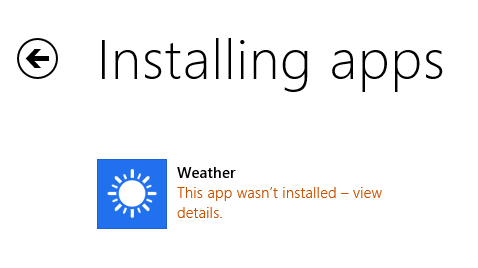
How to White List Packaged apps...
If you wanted to create more of a "White List" so that you ONLY explicitly allow Packaged Apps to run that you approve you can use the "Automatically Generate Rules..." option. 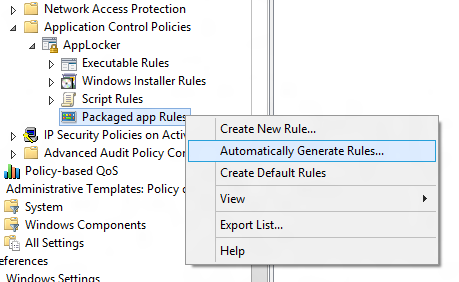 This will launch a wizard that will scan all the Packaged apps install on your computer and then generate a white list for each application.
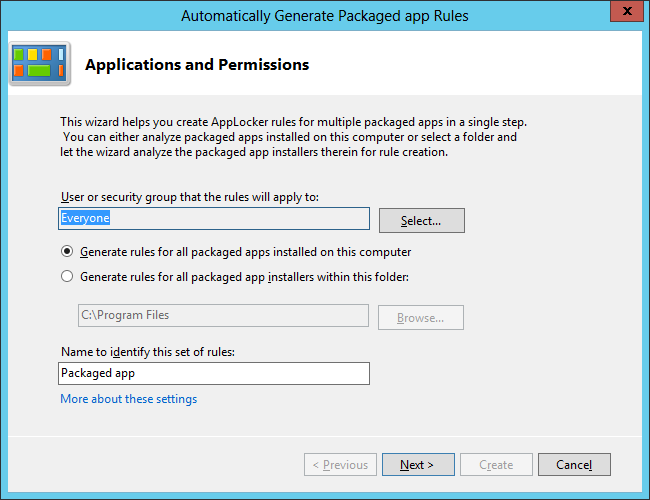
Confirm that you want to reduce the number of rules... 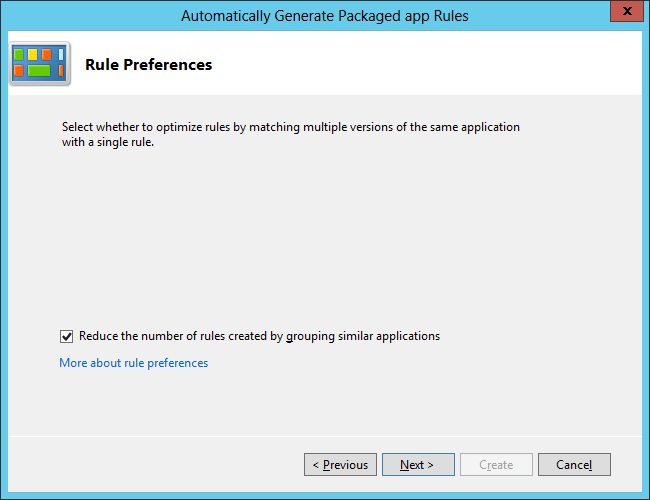 Once the scan is done you can see how many have been created and review the rules...
 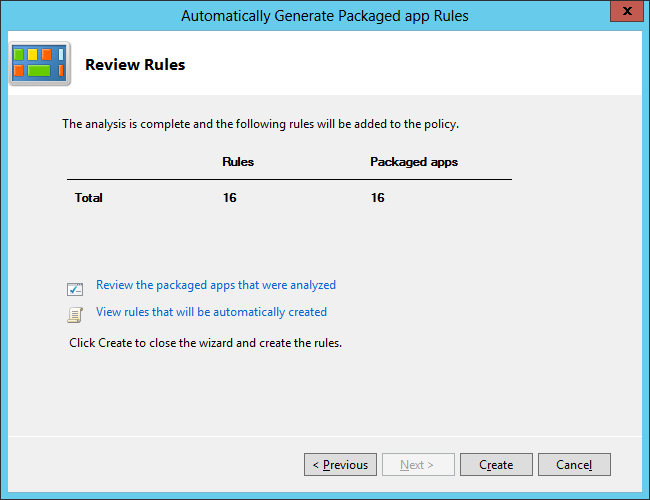 Once you click "Create" it will generate an allow rule for each Packaged App that is install on your computer... You can then manually edit this list to your desired configuration.
 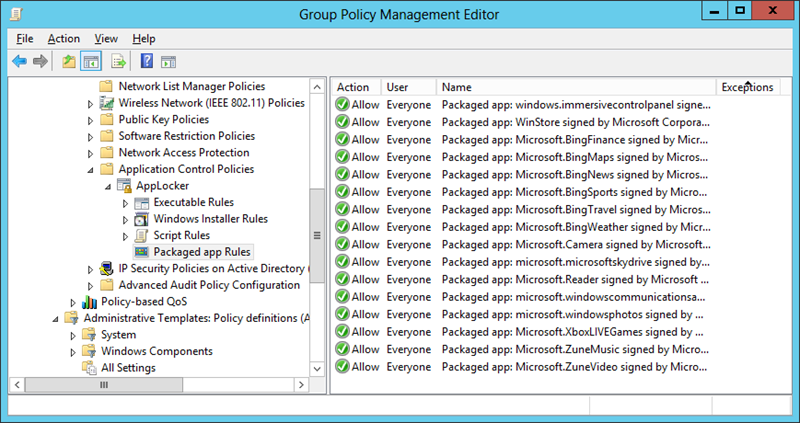 Now any additional Packaged that are not on this "White list" will be explicitly blocked from installing and / or running. Tip: You can block the "windows.immersivecontrolpanel" (a.k.a Metro Control Panel) and the "WinStore" (a.k.a. Windows App Store) if you want to prevent users from configuring windows using the Metro Control Panel or downloading any new apps from the store.
Troubleshooting AppLocker
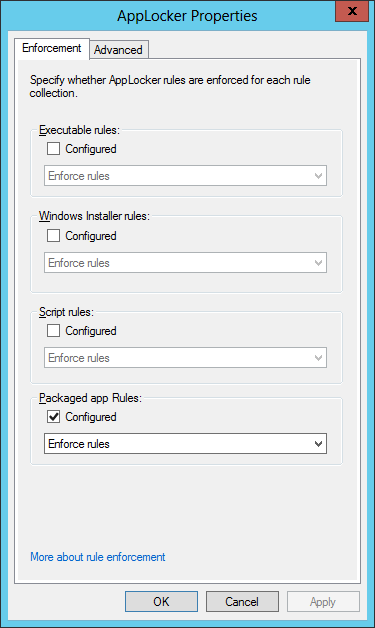
As with Windows 7 there are a number of pre-requisites you need for AppLocker to work on your system... 1. You need to enable the Application Identification services on the computer. You can of course do this via group policy preferences services option. 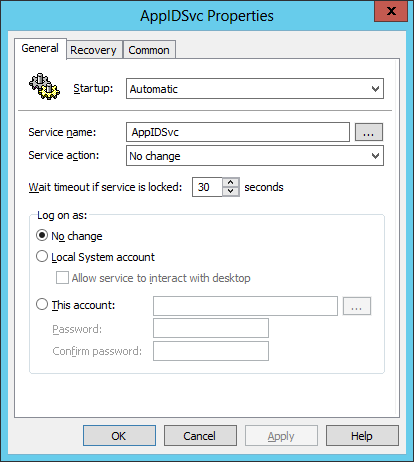 2. You need to configure the AppLocker in to "Enforced" mode for the "Packaged Apps" option. You do this by going to the properties of the "AppLocker" option under Computer Configuration > Policies > Windows Settings > Security Settings > Application Control Policies.
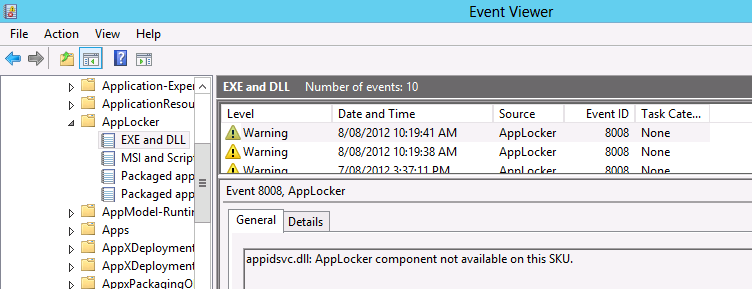
  3. As with Windows 7 you need to be running the Enterprise edition of Windows 8 for this feature to work... (NOT Windows 8 Pro) for this to work. You can tell definitively if you have the wrong OS version install if you start getting this event log message...
  4. And with all things AppLocker nothing happens instantly... there is normally a few minutes lag between a Group Policy being applied to a computer and the policy taking affect. So if it does not happen straight away wait and/or reboot to get things going.
Additional Packaged App Group Policy Settings
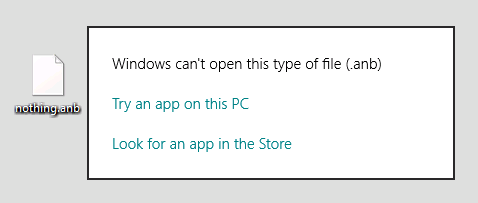
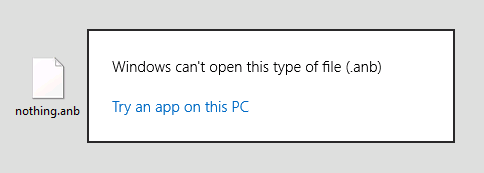
When a user clicks on a file with an un-known extension Windows will prompt the user to see if they can open it using an app in the AppStore this can be controlled using the e the new setting "Turn off access to the Store". 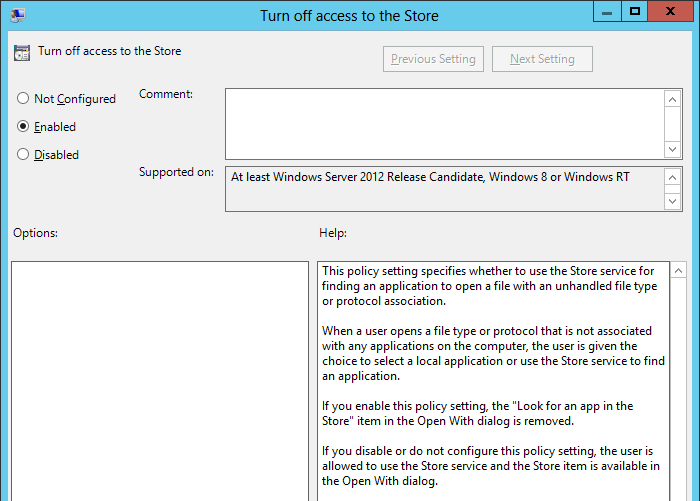 Before Before |
After |
|---|---|
 |
 |
The other two new App Store settings can be found under Computer Configuration > Policies > Administrative Templates > Windows Components > App Package Deployment 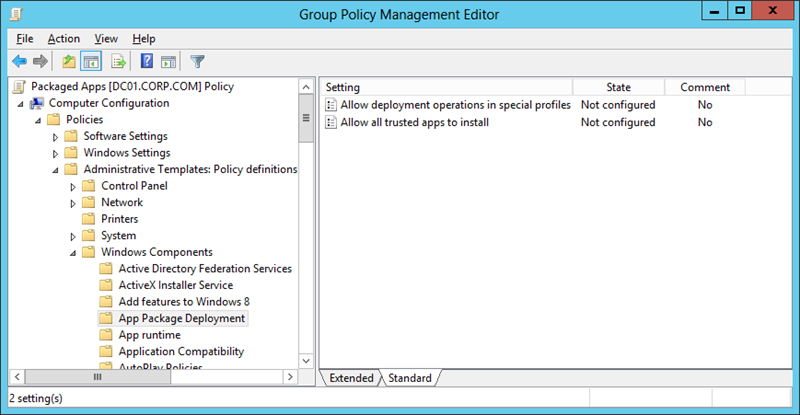 As you can read form the Help below "Allow deployment operation in special profiles" basically allows users with "Special" profiles to manage the Packaged apps installed, otherwise they will be by default not able to change what is already installed. As you can read form the Help below "Allow deployment operation in special profiles" basically allows users with "Special" profiles to manage the Packaged apps installed, otherwise they will be by default not able to change what is already installed. 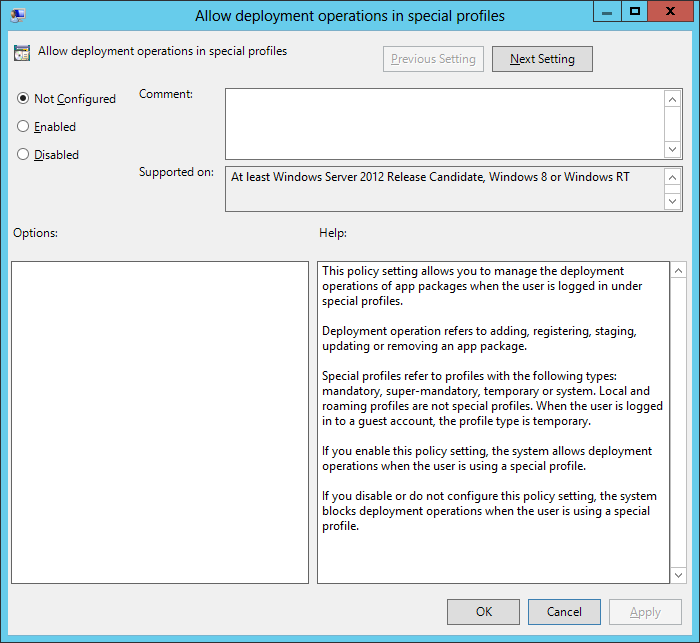 The other option allows organisation to run application that have NOT been signed by Microsoft but does have a valid trusted certificate installed. This is kinda like the option in Android that allows you to run "untrusted" apps so long as they have a valid digital certificate, so I expect that it will be an option that a lot of expert users will be enabling... The other option allows organisation to run application that have NOT been signed by Microsoft but does have a valid trusted certificate installed. This is kinda like the option in Android that allows you to run "untrusted" apps so long as they have a valid digital certificate, so I expect that it will be an option that a lot of expert users will be enabling... 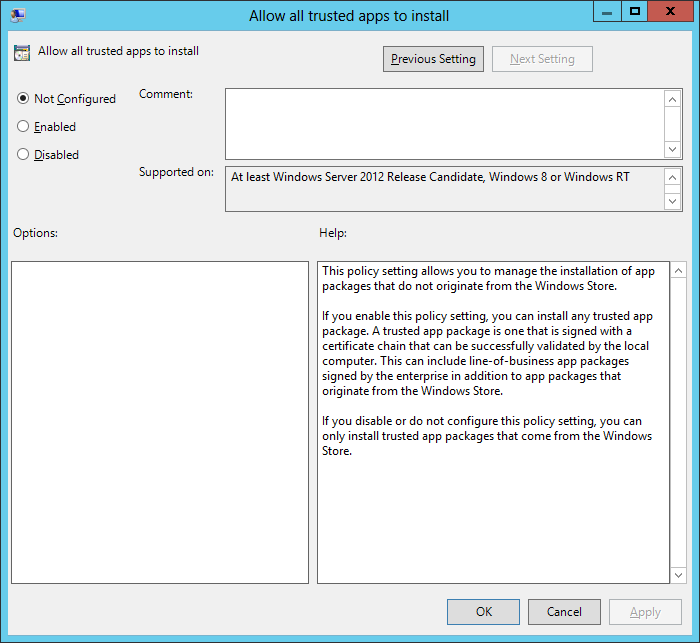 |
Conclusion
Hopefully these new features will help you manage you Packaged Windows 8 Apps in your environment. While I am still not sure how you actually install and remove apps for users automatically for users at least you now know you do have the option to open it up, lock it down or just granularly control certain apps in your Windows 8 environment.