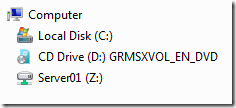
I just read an article that showed you how to set this really cool registry key that allows you to change how the drive letter is displayed in Windows Explorer. As this hack is only a registry key I thought I would do a quick how to deploy this this feature using Group Policy Preferences Registry Extension.
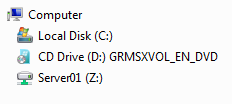
Below is an example of the options you have to show the drive letters:
| After (Default) | None |
|---|---|
 |
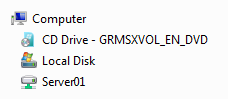 **** **** |
| Mixed (Local After, Network Before)**** | Before |
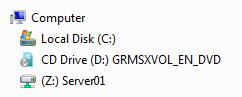 **** **** |
[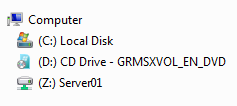 ]() ]() |
````
The registry key that you use to configure this option is called "ShowDriveLettersFirst" and it can be applied in either the user or the machine.
**Note:** According to this Microsoft KB Article [KB330193](<http://support.microsoft.com/kb/330193> "http://support.microsoft.com/kb/330193") it will only work as a Machine setting in Windows Vista.
ShowDriveLettersFirst
Key (User): HKCU\SOFTWARE\Microsoft\Windows\CurrentVersion\Explorer Key (Machine): HKLM\SOFTWARE\Microsoft\Windows\CurrentVersion\Explorer Value: ShowDriveLettersFirst (REG_DWORD32) Data: 0 (After) Data: 1 (Mixed) Data: 2 (None) Data: 4 (Before)
Step 1. Edit a Group Policy Object that is targeted either to a user or a computer that you want to apply this setting.
Step 2. Create a New Registry Item using the above Registry details
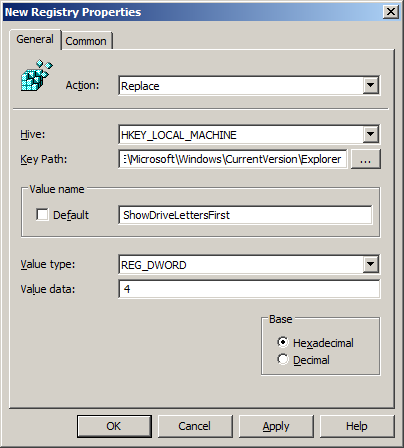
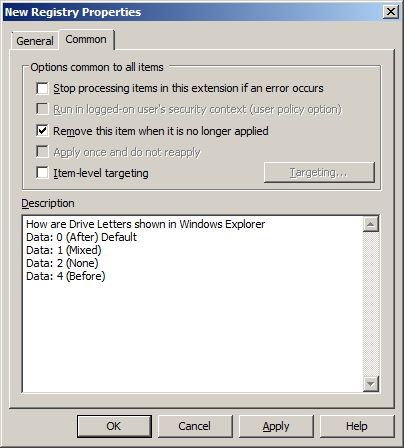
Step 3. Click on the "Common" tab and tick "Remove" this item when it is no longer applied". I would also put in a comment in the description field explaining the valid numbers and what they do for the setting so someone else looking at this policy know how to re-configure this option if needed.
Explanation: This will ensure the setting reverts to defaults if the computer no longer has this setting applied.
For more information on this registry key check out Microsoft KB330193
Source GHacks: Windows Explorer: Display Drive Letters Before Drive Names (via LifeHacker: Show Drive Letters Before The Drive Name In Windows Explorer )